Studio is in beta and free while we polish it. Tell us what breaks

Write a pattern.
Watch it knit.

KNITSTECH Studio is a desktop editor for knitting patterns: write them as text, preview the fabric, turn a PDF into an editable pattern and keep everything in your knits.tech account.

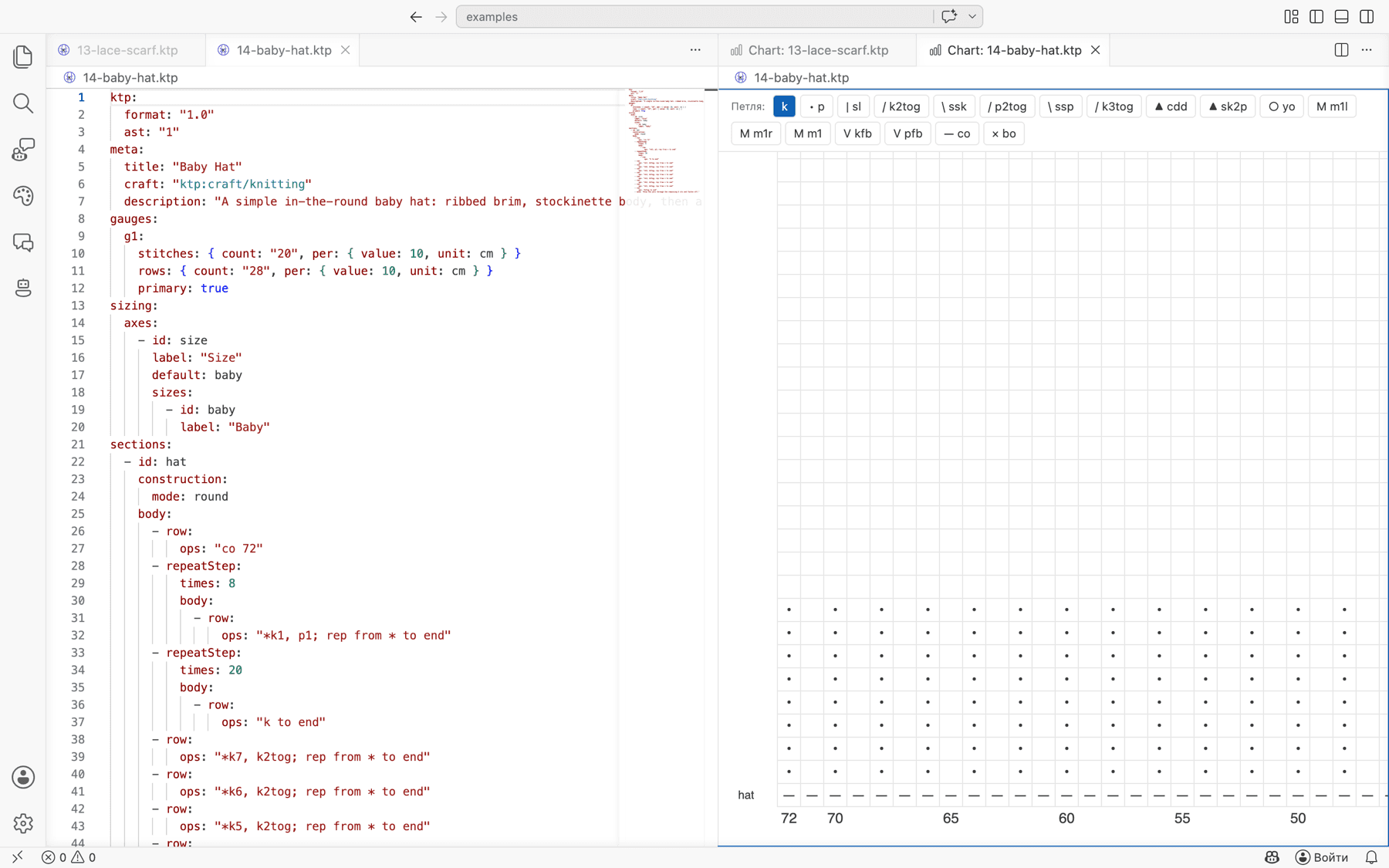
KNITSTECH Studio: a baby hat pattern in the editor and its stitch chart beside it

Patterns you can read, edit and check

A .ktp pattern is plain text in knitting language: cast on, repeats, rows, bind off. Studio checks stitch counts as you type and previews the fabric, in English or Russian notation.

An AI assistant that asks first

Ask it to lengthen a brim or rewrite a row. It shows a plan and waits for your approval before touching the pattern, then shows exactly what changed.

Agent panel with a plan waiting for approval

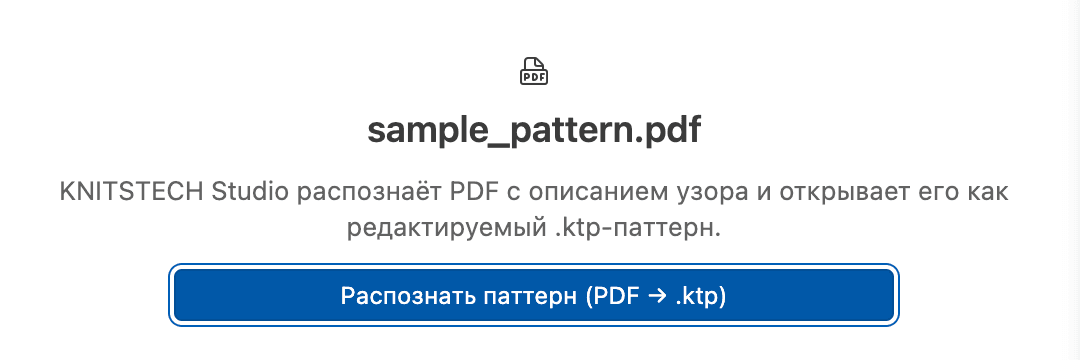
PDF to pattern

Open a PDF pattern and Studio turns it into an editable .ktp file, ready to tweak, resize and save.

Studio offering to turn an opened PDF into a .ktp pattern

Install

  1. 1

    Unzip the download and move KNITSTECH Studio to Applications.

  2. 2

    The beta build isn’t signed by Apple yet, so macOS blocks the first launch. Clear the quarantine flag in Terminal:

  3. 3

    Open KNITSTECH Studio. Without the command: try to open it once, then go to System Settings → Privacy & Security and choose Open Anyway.

Questions

Is Studio free?

Yes, Studio is free during the beta.

Do I need an account?

No for writing and previewing patterns: that works offline. Cloud patterns and PDF import need a knits.tech account. Sign in with your email, open the link we send you and Studio finishes signing you in.

Which AI does the assistant use?

Your own API key for OpenAI, Anthropic, Gemini or OpenRouter. Without a key the assistant runs in demo mode.

Why does my computer warn me about the app?

Beta builds aren’t code-signed yet, so macOS and Windows show a warning on first launch. The install steps above show how to open Studio anyway.

Where do I report a bug?

Write to us on Telegram at t.me/knitstech. Tell us what you did, what you expected and what happened instead.